
¿Cómo me registro en Civic Marketplace?
Los proveedores a los que se les hayan adjudicado contratos con cualquiera de las siguientes cooperativas o agencias principales pueden acceder a la plataforma:
Cooperativas: TXShare, AFI, MMSA
Agencias principales: NCTCOG, Ciudad de Denton, Ciudad de Brownsville, Ciudad de Dallas
Esta lista está creciendo; más proveedores obtendrán acceso a medida que se establezcan nuevas asociaciones.
Si no puede acceder a la plataforma, comuníquese con nuestro equipo de habilitación de proveedores en [email protected].
Los proveedores pueden crear cuentas de usuario en Civic Marketplace mediante dos métodos de activación: Lista blanca y autoservicio.
Proveedores en lista blanca
Proveedores en lista blanca tendrán sus perfiles comerciales ya creados y accesibles desde el mercado bajo los contratos de cooperativa que se les hayan adjudicado.
Los "usuarios proveedores" deberán registrarse con su correo electrónico de trabajo o ser invitados por miembros existentes del equipo (cuando corresponda) para acceder a su panel de control de escaparate/perfil comercial.
Esta opción se puede completar en 3 pasos, como se describe a continuación:

- Complete el formulario de registro que aparece al seleccionar "Registrarse", luego seleccione el botón "Proveedores" en el sitio web de Civic Marketplace
- Verifique su dirección de correo electrónico de trabajo
- Acepte los términos y condiciones y revise las tarjetas de propuesta de valor de incorporación
También puede registrarse utilizando el inicio de sesión único (SSO) de Google o Microsoft.
Autogestión
El segundo método es Autogestión. Este proceso permite a los proveedores crear sus propios perfiles de empresa o escaparates, o unirse a uno ya existente solicitando acceso a los miembros actuales del equipo.
Los proveedores pueden hacerlo siguiendo los pasos a continuación.
Paso 1 — Registro
Para crear su cuenta:
- Vaya a la página de registro de Civic Marketplace.
- Haga clic en "Registrarse" y luego seleccione el botón "Proveedores".
- Siga los pasos que aparecen en pantalla para completar el registro.
.avif)
Introduzca los siguientes datos personales:
- Nombre
- Apellidos
- Dirección de correo electrónico
- Contraseña
También puede registrarse utilizando el inicio de sesión único (SSO) de Google o Microsoft.
Paso 2 — Revisar y aceptar los términos de servicio
Lee y acepta los Términos de servicio para continuar con tu registro.
.avif)
Paso 3 — Crear o unirse a una empresa
Busca tu empresa; si aún no existe, selecciona “Crear nueva empresa”.
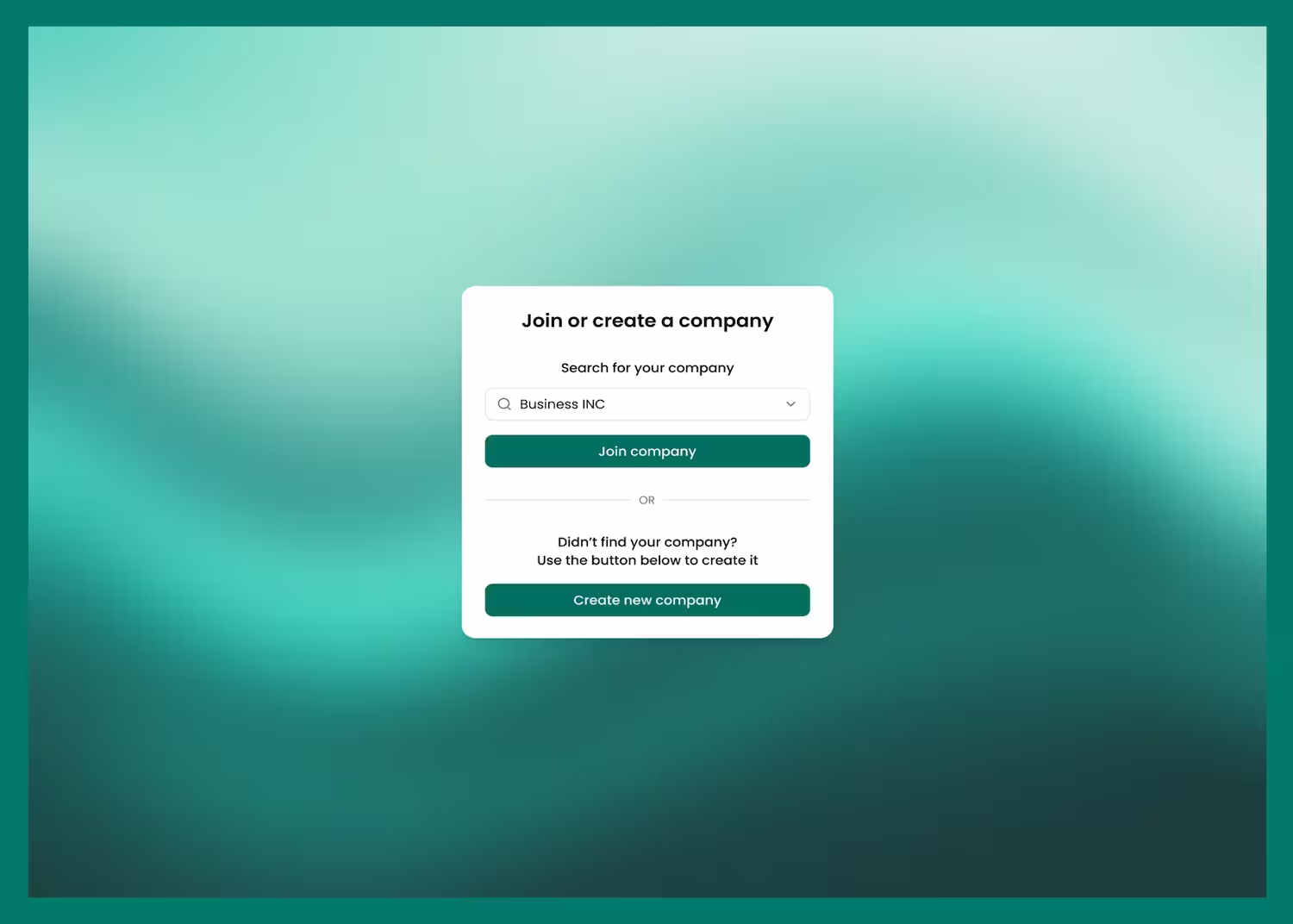
Si tu empresa ya existe, los miembros de tu equipo recibirán una notificación por correo electrónico y podrán aceptar tu solicitud desde la sección “Equipo” en el panel de control de la tienda.
Una vez aprobada, recibirás una notificación por correo electrónico que te permitirá finalizar tu cuenta de usuario y acceder al panel de control de la tienda de tu empresa.
.avif)
Paso 4 — Configura el perfil de tu empresa
Si tu empresa aún no existe, se te redirigirá para configurar su perfil y necesitarás el número de identificación fiscal (TIN) de la empresa para la verificación, siguiendo las instrucciones a continuación.
Introduce los datos principales de tu empresa:
- Nombre legal
- Número de identificación fiscal (TIN)
- Dirección comercial
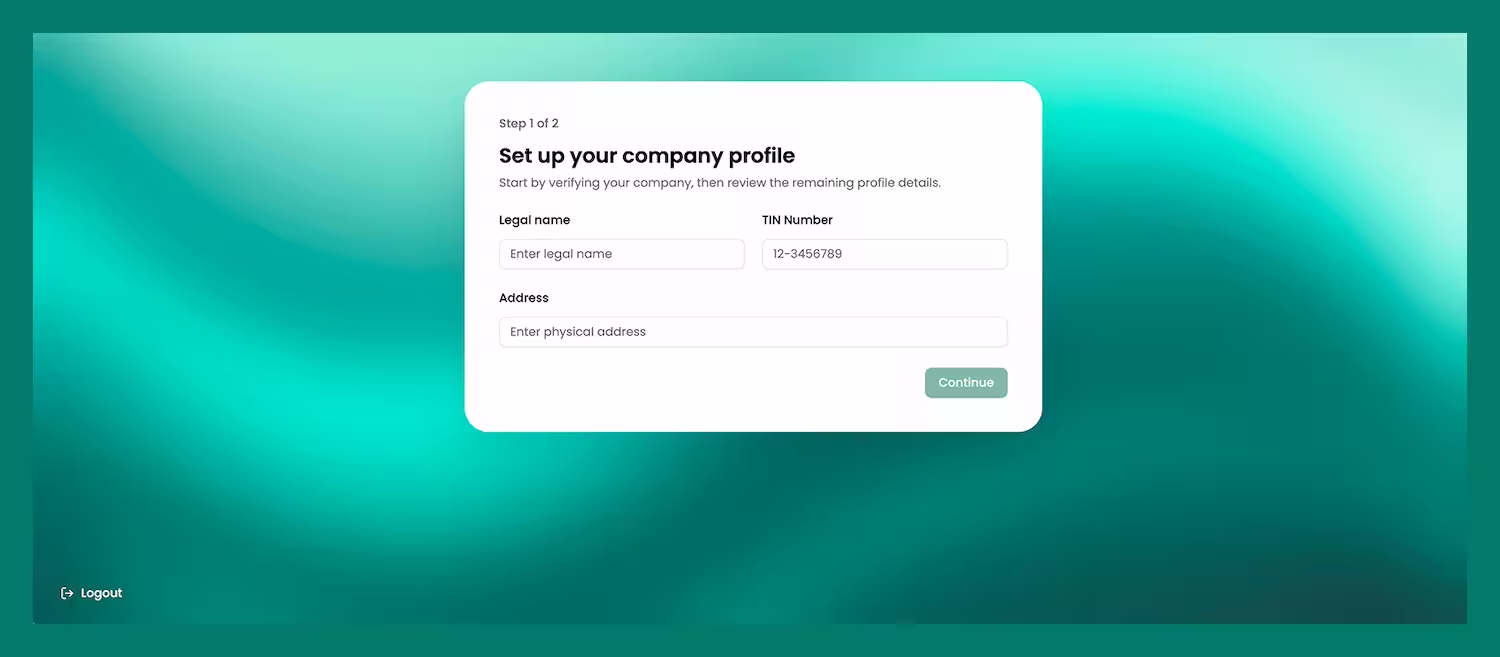
Completa la información de contacto e identidad de tu empresa:
- Dirección de correo electrónico
- Número de teléfono
- Sitio web
- Año de constitución
- Logotipo de la empresa (subir)
.avif)
Una vez que hayas completado la carga, se te guiará a través de una serie de tarjetas de propuesta de valor antes de llegar a tu panel de control.