Cómo subir y editar un enlace personalizado
Los enlaces personalizados son una excelente forma de añadir vínculos a fuentes externas relacionadas con tu negocio. ¡Pueden ser tu blog, un catálogo externo, una conferencia a la que asistirás o cualquier otra cosa!
Ten en cuenta que ya puedes añadir enlaces a tu sitio web y redes sociales en la página de Detalles de la empresa, por lo que no recomendamos usar los enlaces personalizados para este tipo de contenido.
Cómo añadir un enlace personalizado
- En tu panel de control, ve a Enlaces.
- Haz clic en el botón Añadir enlace en la esquina superior derecha.
- En la ventana emergente, completa los siguientes detalles:
- Título: El nombre que quieres darle a tu enlace.
- URL: La URL de tu enlace.
- Portada: Tienes dos opciones. Si eliges Usar vista previa de la URL, el sistema extraerá la imagen Open Graph de tu URL; esta es la imagen que aparece cuando se comparte el enlace, por ejemplo, en redes sociales. Si eliges Subir una imagen, deberás subir una portada personalizada desde tu devi
- Una vez que todo esté listo, haz clic en Añadir enlace. Tu enlace personalizado ya estará activo en tu tienda.
Ten en cuenta lo siguiente: si tu enlace no tiene una imagen Open Graph, la tienda no podrá generar una portada y tu enlace personalizado aparecerá vacío. En ese caso, te recomendamos subir una portada personalizada.

Cómo editar un enlace personalizado
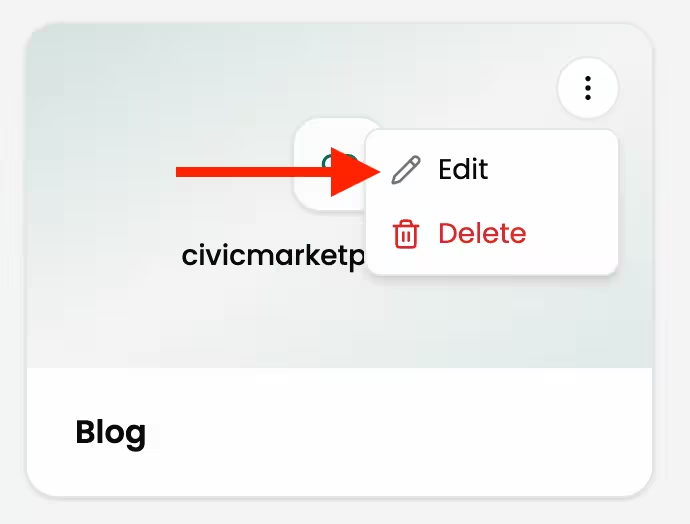
Haz clic en los tres puntos de la portada del enlace personalizado y selecciona Editar. Esto abrirá una ventana con los mismos campos que arriba. Una vez que hagas clic en Guardar cambios, el enlace personalizado actualizado estará activo en tu tienda.