The Solicitations Portal for Suppliers
This guide walks suppliers through the Solicitations/RFPs Portal on Civic Marketplace — from finding opportunities to asking questions, registering interest, and submitting a bid.
Quick Reference
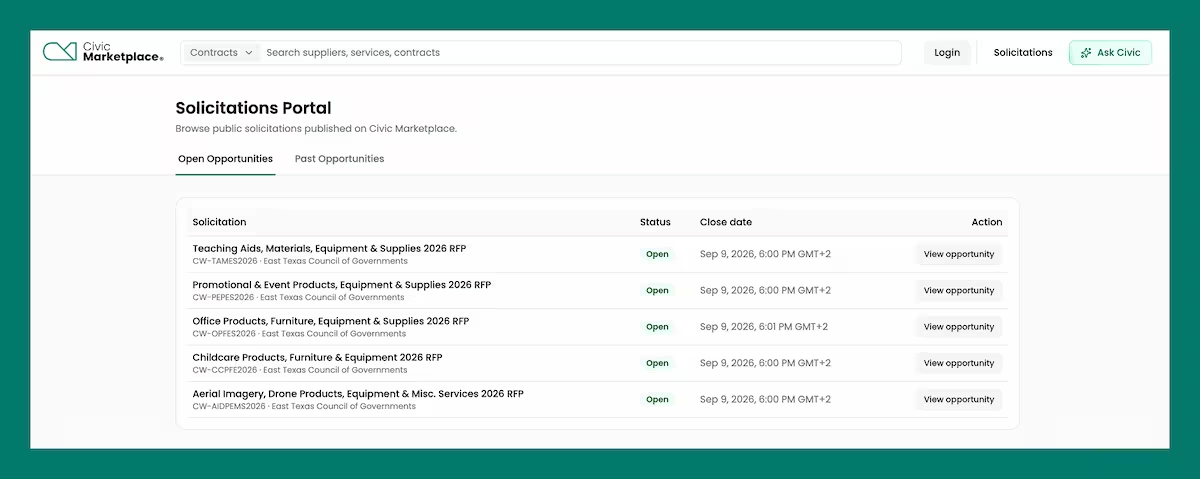
- Account required: You can browse and read solicitations without an account, but downloading documents and submitting a bid both require a Civic Marketplace Supplier account.
- Intent to Bid: It's always advisable to register your intent, because this is how you'll receive updates on the solicitation, such as addenda or public notices.
- Questions and Intent to Bid are one-way: Both actions email the solicitation owner the moment you submit them — neither is reversible or private.
- Watch the Key Dates: Intent to Bid, Questions, and Close dates are set per solicitation by the entity and vary listing to listing.
- Your view is your own: The portal only ever shows your own status on a listing — there's no way to see another supplier's activity beyond the public Engagement Overview counts.
1. Overview
The Solicitations Portal is where public sector entities on Civic Marketplace post RFP/RFQ-style opportunities for suppliers to bid on. It runs alongside, not instead of — any cooperative contract business a supplier already holds, giving suppliers an additional way to reach agencies directly.
The experience is self-service and scoped to your own supplier account: you browse, drill into a listing, and act on it as yourself. There is no way to view the portal as another supplier.
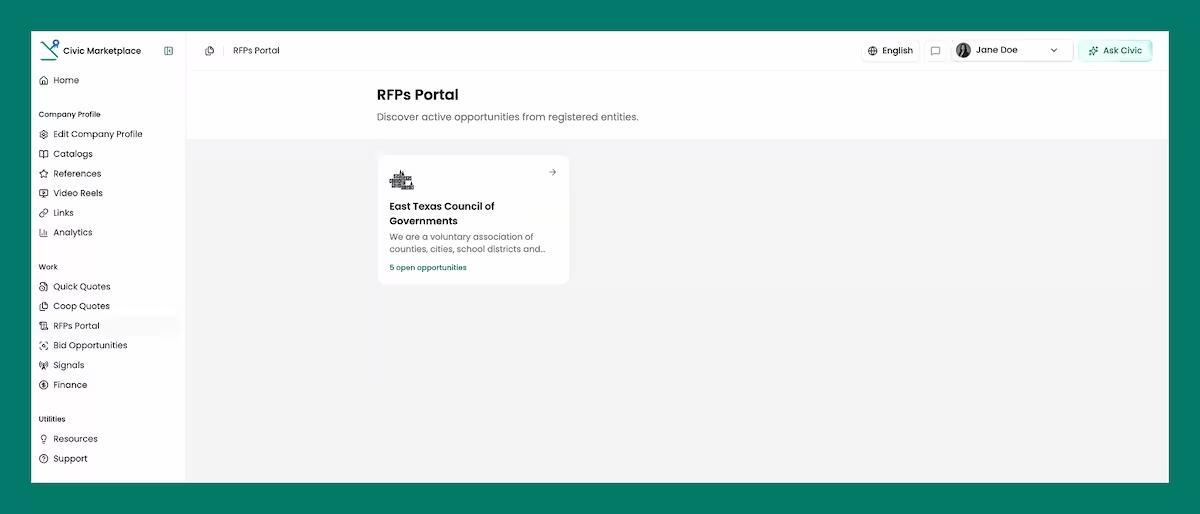
To access the RFPs/Solicitations Portal, navigate to Work > RFPs Portal on your left-side navigation bar. Suppliers will see all entities with live RFP opportunities.
2. Browsing Solicitations
The main Solicitations page lists open opportunities. Each listing shows the title, status, close date, and the actions available to you from that listing.
Opportunities are segmented into three categories “Open Opportunities”, “Past Opportunities” and “My Opportunities” with the later representing those opportunities a supplier would have responded to.
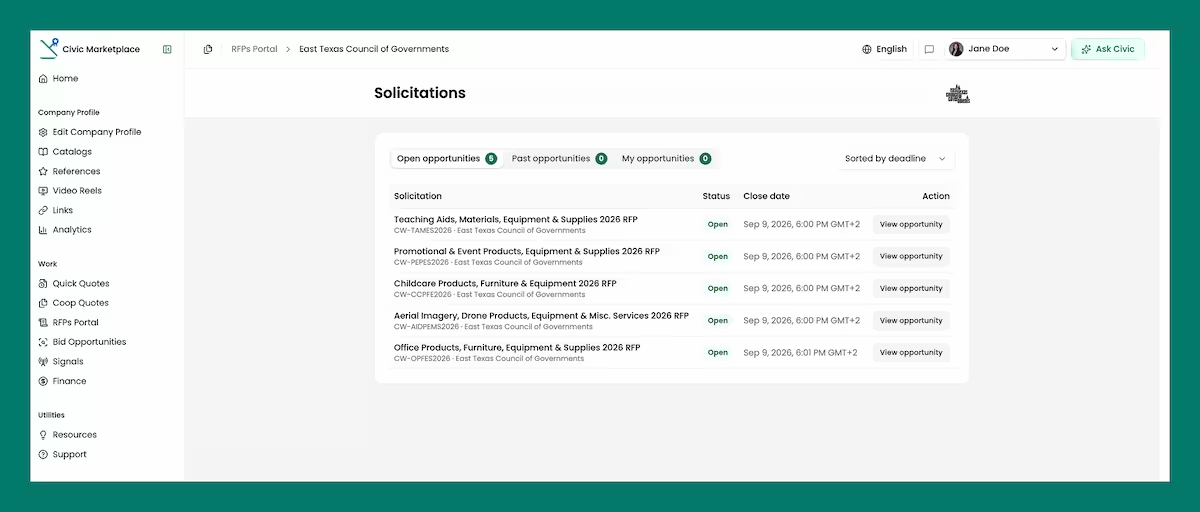
Selecting View Opportunity on any listing opens the full opportunity page.
3. Inside an Opportunity — What You'll See
Selecting the “View Opportunity button” on any listing opens the full opportunity page.
Every opportunity page is organized into the same sections for suppliers.
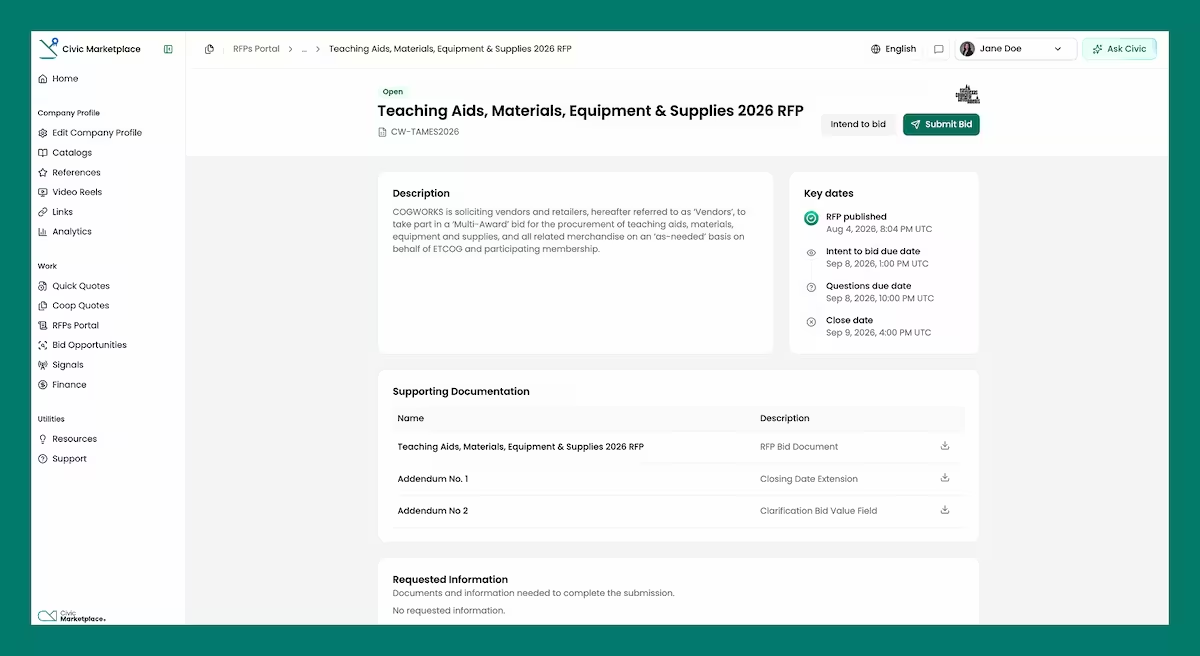
- Description: A summary of the solicitation itself.
- Key Dates: A timeline showing the RFP Publish Date, Intent to Bid due date, Questions due date, and Close Date.
- Supporting Documentation: The solicitation documents uploaded by the entity. Downloading a file requires you to log in or create a Civic Marketplace Supplier account.
- Requested Information: What you'll need to submit — accepted file types, whether each item is required or optional, and any completion instructions.
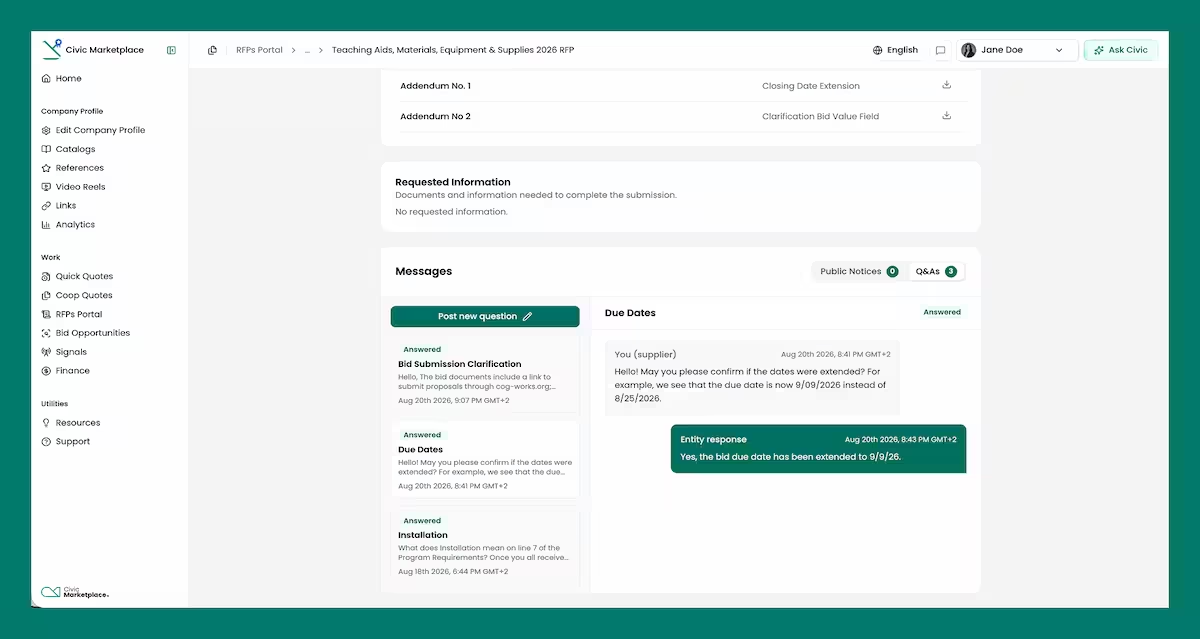
- Messages: Public notices posted by the entity, plus a Q&A thread for supplier questions.
- Submissions: Where you prepare and submit your bid once registered. If you don't have an account yet, you can create one via the Sign Up button.
Note: You'll also see your own status on the opportunity here — any questions you've already asked, and whether you've registered bid intent.
4. Asking a Question
If something in the solicitation is unclear, you can submit a question directly from the opportunity page.
- Go to the Messages section on the opportunity page.
- Select the “Post a new question” button
- Enter a title and the body of your question.
- Post Question — your question is added to the public Q&A thread.
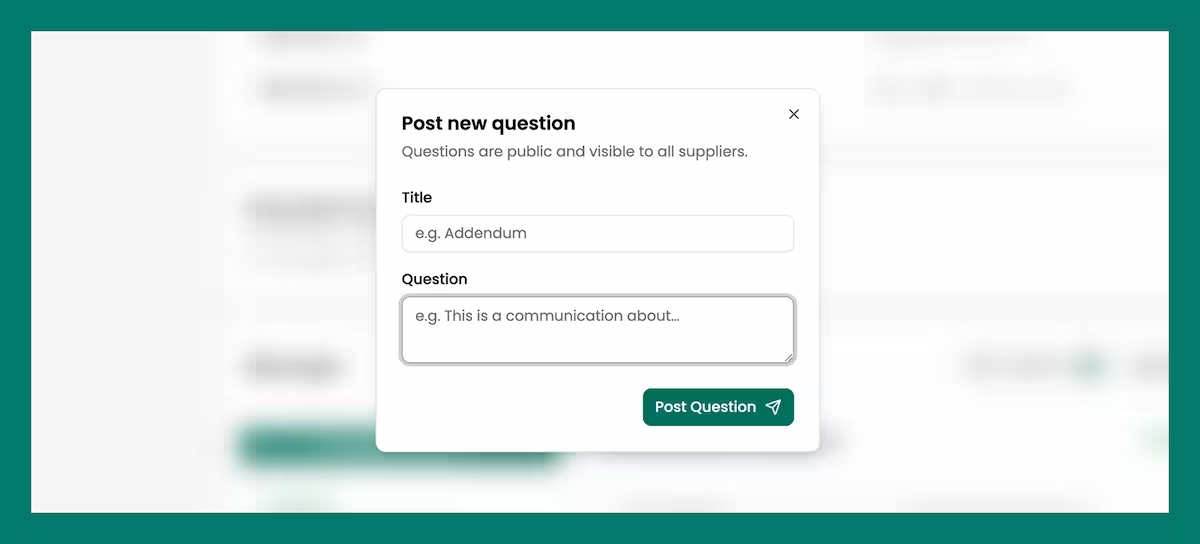
Note: Submitting a question sends an email notification to the solicitation owner immediately. This isn't a silent draft — treat it as an outward-facing action.
5. Registering Bid Intent
Registering your intent to bid signals to the entity that you plan to respond, and adds you to their Registered Interest count.
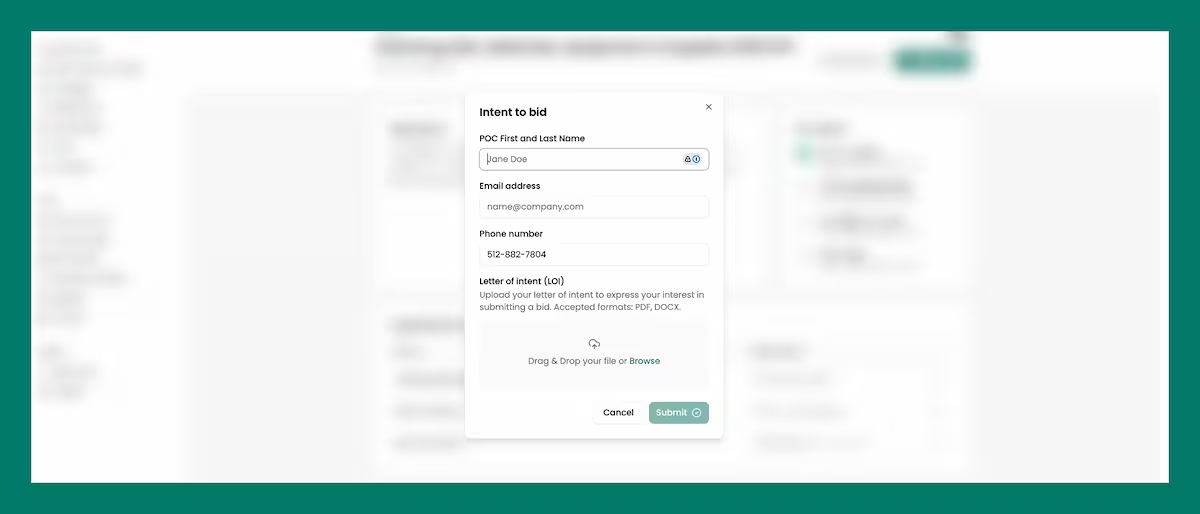
- From the opportunity page, select the “Intent to bid” button at the top of the page
- Add your Point of Contact contact details as well as a Letter of Intent (LOI) as an attachment to submit your Intent to bid
- Confirm — your interest is logged against the solicitation.
Note: Like asking a question, registering intent sends an email notification to the solicitation owner right away. There's no way to quietly withdraw it, so only register once you're confident you intend to bid.
6. Submitting a Bid
Bids are prepared and submitted from the Submissions section of the opportunity page accessible from the “Submit Bid” button at the top of the page.
- Make sure you're logged in — if you don't already have a Civic Marketplace Supplier account, create one via the Sign Up button on the opportunity page.
- Review the Requested Information section for the full list of what's required: documents, accepted file types, and which items are optional.
- Open Submissions and upload your response, following the completion instructions provided:
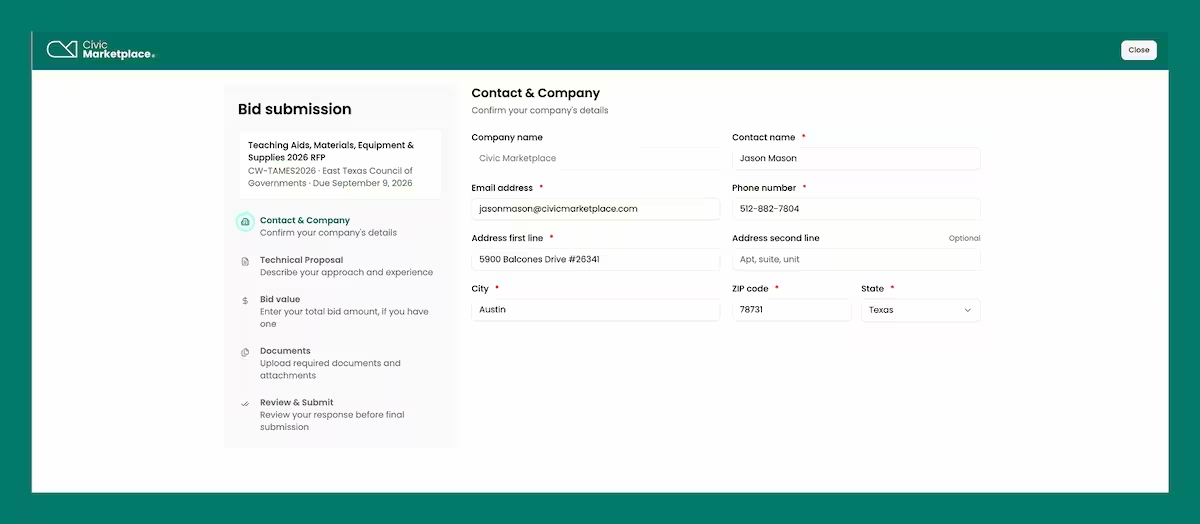
Step 1 — Contact & Company Details
Confirm your contact and company details. These will be pre-filled from your supplier business profile on Civic Marketplace.
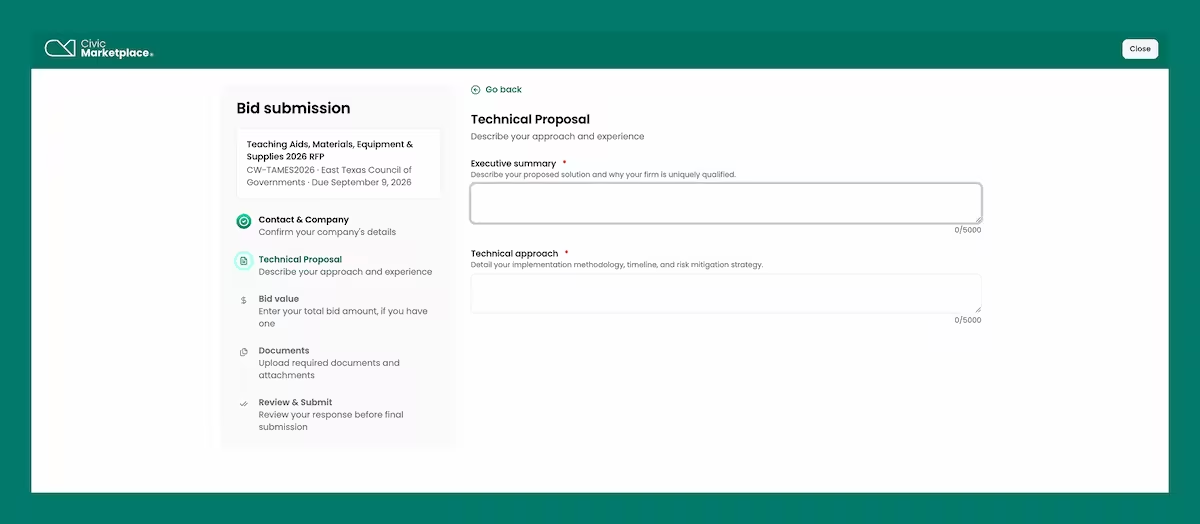
Step 2 — Technical Proposal
Provide your technical proposal in two parts: an executive summary and a detailed technical approach. Both fields are plain text, so we recommend drafting your content elsewhere and pasting it in. Each field has a 5,000-character limit.
Step 3 — Document Upload
If the opportunity requires any document uploads, you'll have the option to add them here. Not all opportunities require this — if none apply, you can proceed to the next screen.
.avif)
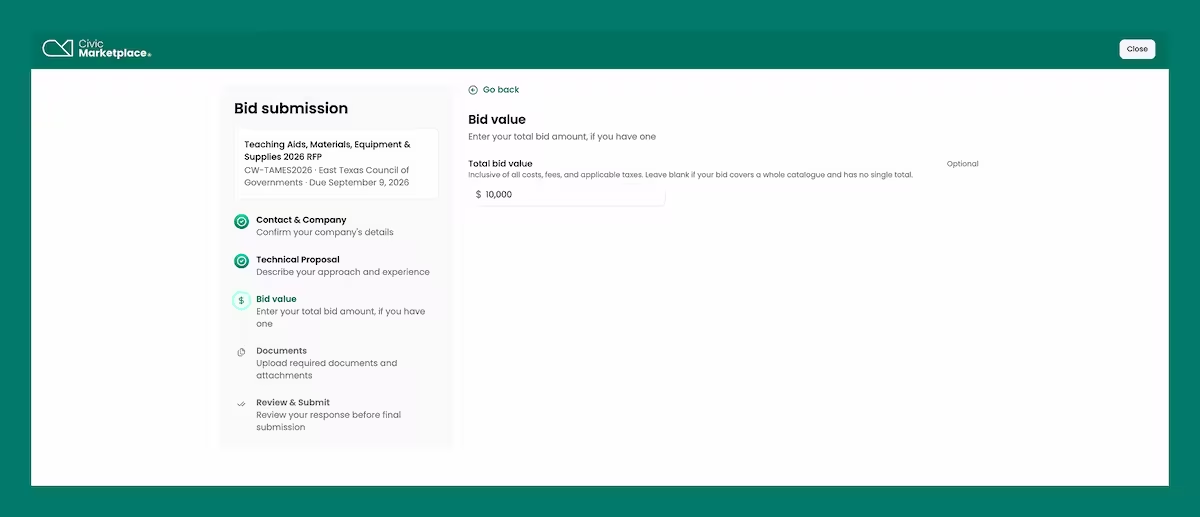
Step 4 — Total Bid Amount
If your bid has a total amount, enter it here. If your bid covers a whole catalogue with no single total, you can leave this blank.
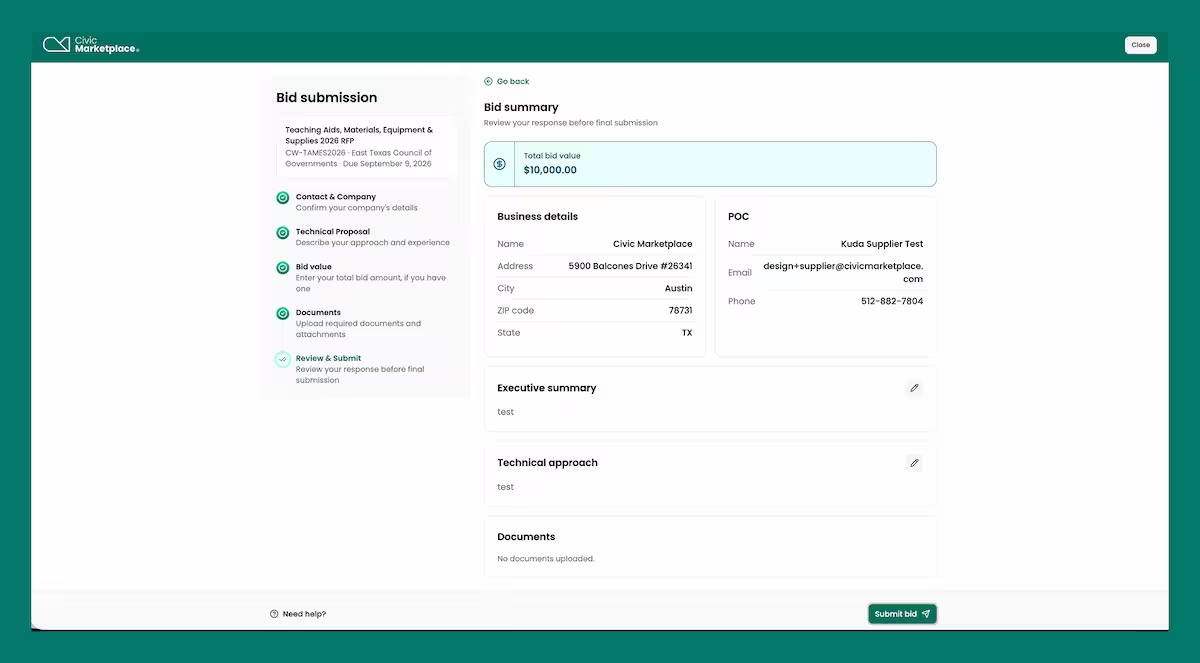
Step 5 — Review & Submit
Review your Bid Summary and make any edits needed, then submit your bid. Make sure you submit before the Close Date shown in Key Dates. Late submissions aren't guaranteed to be accepted.
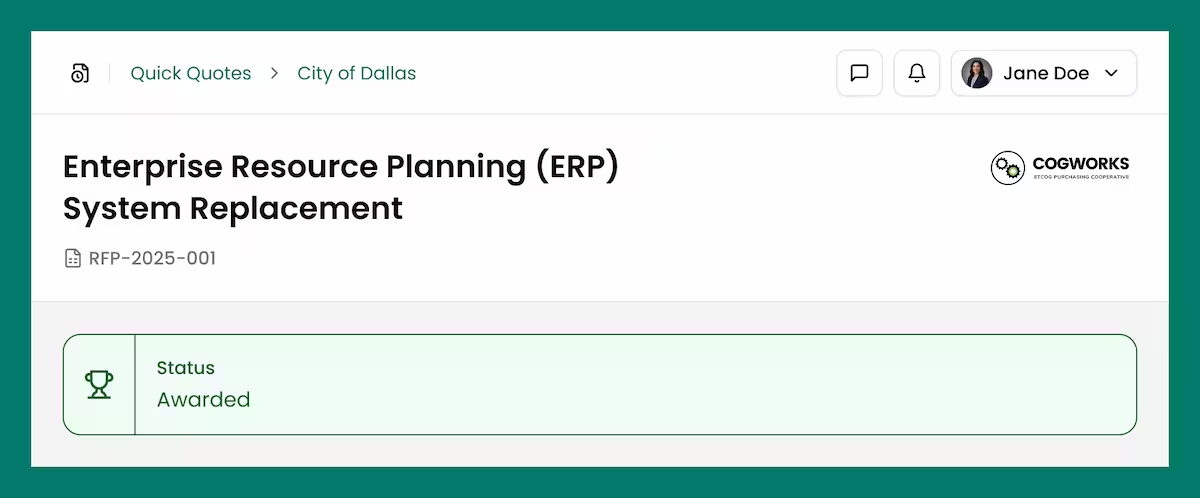
Awarded Status
Once you've been awarded a solicitation, a green "Awarded" badge with a trophy icon appears at the top of that opportunity's page, so you can see the outcome at a glance.