
Connect Civic Marketplace to your AI assistant
Civic Marketplace now works inside ChatGPT, Claude and Microsoft Copilot. Connect once, and you can search contracts, look up suppliers, read contract documents and handle quote requests by asking in plain English — without leaving the tool you already use.
There is nothing to download, no code to write, and no API key. You sign in with the Civic Marketplace account you already have, and your assistant can then use Civic Marketplace on your behalf.
.avif)
Before you start
Three things to check before you open your assistant’s settings.
An active Civic Marketplace account
Everything you see through your assistant is scoped to what your account can already access — the connector never widens your permissions.
A paid plan on your AI assistant
Custom connectors are not available on free tiers (see the table below).
Admin approval, if your AI tool is managed
If your organisation manages your AI tool centrally, your administrator may need to switch custom connectors on first. This is the single most common reason the option is missing from your settings.
The address you will need
Both Claude and ChatGPT use the same connector address. Microsoft Copilot uses a slightly different one.
Important
Copy the address exactly, including the /mcp at the end. Pasting it into a browser will not work and is not meant to — it is not a web page. It only works when entered into your assistant’s connector settings.


Claude and ChatGPT

Microsoft Copilot
Set it up
Pick the assistant you use.
Claude on the web
Click your profile in the bottom left, then open Settings.
Select Connectors from the sidebar, then click Add custom connector.
Enter the name Civic Marketplace and paste the address https://mcp.civicmarketplace.com/mcp. Click Add.
Click Connect. A Civic Marketplace sign-in window opens — log in with your usual account.
Review the permissions Claude is asking for and click Allow access. You only do this once.
Start a new chat and check Civic Marketplace is switched on in the tools menu, then ask it something.
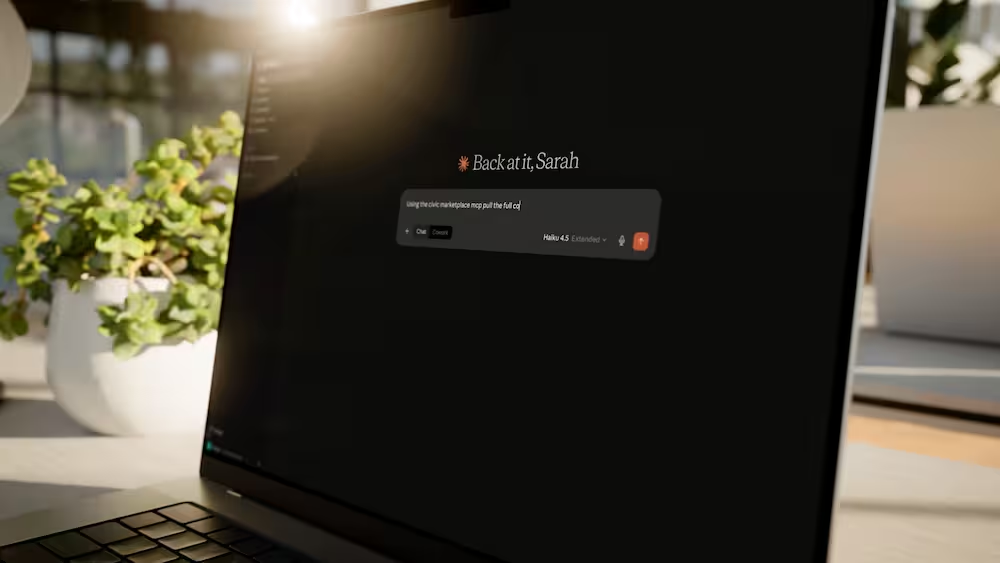
Claude desktop app
Identical, with one difference: in Settings → Connectors, click the + button at the top of the panel and choose Add custom connector from the menu. Once linked, Civic Marketplace appears in your connectors list with a Disconnect button.
Optional
Open the connector to see Tool permissions. Each Civic Marketplace tool can be set to Allow, Needs approval, or Disallow. The default, Needs approval, means Claude checks with you before it does anything that changes data — we recommend leaving it there.
Claude Code (for developers)
claude mcp add --transport http civicmarketplace https://mcp.civicmarketplace.com/mcp
This registers the server but does not sign you in. Start a session with claude, run /mcp, select civicmarketplace and choose Authenticate. Your browser opens the Civic Marketplace sign-in page. Running claude mcp list only reports status — it will show “Needs authentication” until you complete the step above.
Connect with ChatGPT
In ChatGPT, go to Settings, then Connectors. Depending on your plan this may sit under an Advanced or Developer mode toggle.
Click Create or Add custom connector.
Fill in the name Civic Marketplace and the MCP server URL
https://mcp.civicmarketplace.com/mcp. Authentication is set to OAuth automatically — leave it as it is.Click Connect. Sign in with your Civic Marketplace account and approve the permissions requested.
Open a new chat, enable Civic Marketplace for that conversation from the + or tools menu, and ask away.
Tip
ChatGPT will not always reach for Civic Marketplace on its own. Naming it in your prompt — “Using Civic Marketplace, find…” — makes it reliable.
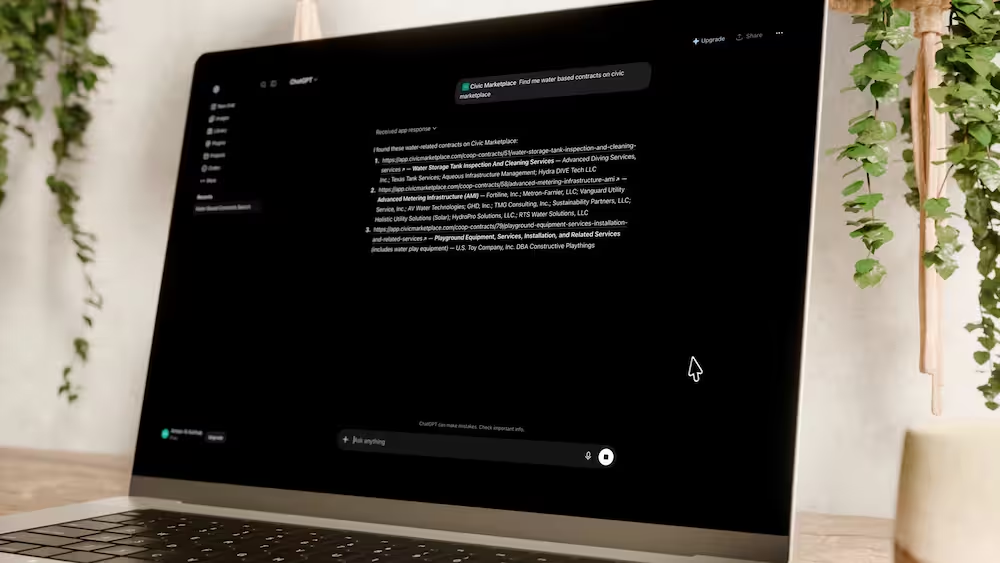
Connect with Microsoft Copilot
This one is set up once by an administrator, not by each person. Allow a little longer than the other two — expect ten to fifteen minutes, and you will need someone with rights to build and publish agents in your Microsoft 365 tenant.
Go to copilotstudio.microsoft.com and open the agent you want to extend, or create a new one.
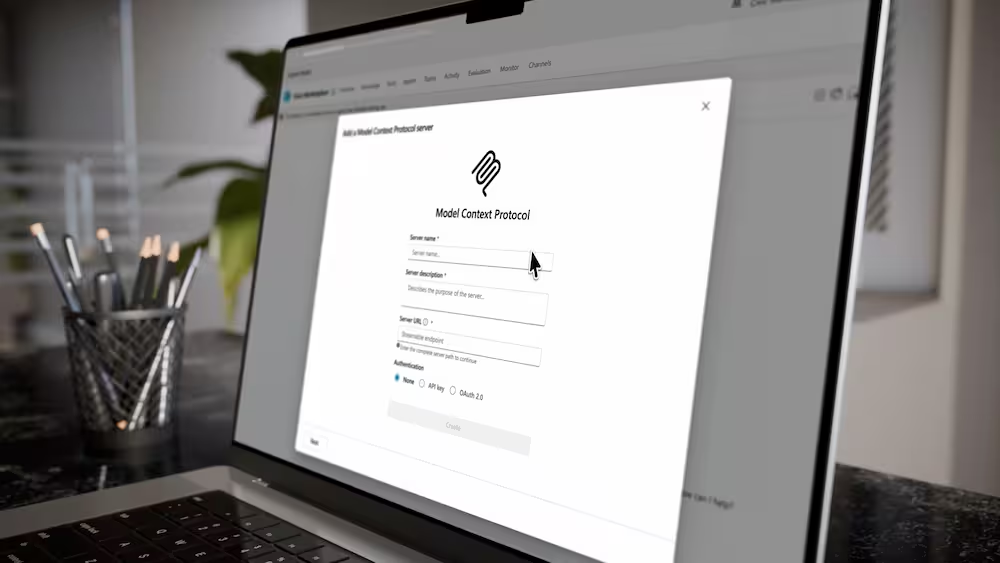
Go to Tools → Add a tool → Model Context Protocol (some tenants show this as New tool → MCP), and enter the server address
https://mcp.civicmarketplace.com/mcp/copilot.Set authentication to OAuth. Copilot Studio uses Civic Marketplace as the identity provider, so each person signs in as themselves the first time they use it.
Save and publish the agent.
Test it in Copilot by asking the agent something like “Search Civic Marketplace for HVAC contracts.” Each user is prompted to sign in on their first request.
Good to know
Because everyone authenticates as themselves, there are no shared credentials and results stay scoped to each person’s own Civic Marketplace access.
Check it worked
Ask your assistant one of these. If you get a real answer back with links to Civic Marketplace, you are connected.
“Using Civic Marketplace, search for janitorial services contracts.”
“Find Civic Marketplace suppliers in Texas with cybersecurity certifications.”
“How many active contracts does my agency have access to?”
What you can do once connected
If you are a gov entity
If you are a supplier
Worth doing first
If you are a supplier, ask your assistant to check your profile completeness score. It takes one prompt, and a fuller profile means more quote requests reach you.
FAQ
No. The connector uses your existing Civic Marketplace login. There is no key to manage and no code to write. The Partner API — which does use keys — is a separate product for teams building their own integrations.
The Civic Marketplace connector is included with your account at no extra cost. You do need a paid plan on your AI assistant, because custom connectors are not offered on the free tiers of ChatGPT or Claude.
Two usual causes. Either you are on a free plan, which does not support custom connectors, or you are on a managed work account where an administrator has to enable them first. On ChatGPT the option may also be hidden behind an Advanced or Developer mode toggle. If you are unsure, ask whoever manages your organisation’s AI tools.
Check the address is exactly https://mcp.civicmarketplace.com/mcp — with https:// at the front and /mcp at the end. A bare domain will not connect. If it still fails, remove the connector and add it again.
This is almost always a stale session. Disconnect the connector completely, then add it again and sign in fresh.
Allow pop-ups for your AI assistant and try again, and make sure you are signing in with the same email address you use for Civic Marketplace.
Connectors have to be switched on for each conversation in some assistants. Open the tools menu in the chat, confirm Civic Marketplace is enabled, and name it in your prompt — “Using Civic Marketplace, …”.
This usually means your Civic Marketplace account is not yet linked to an agency or supplier organisation. Get in touch and we will sort the association out — the connector itself is working fine.
The connector only ever returns data your own Civic Marketplace account can access — it does not grant new permissions. If you expect to see more, your Civic Marketplace access may need updating. Speak to your account manager.
Everything is scoped to you. Read access covers contracts, suppliers and public contract documents. Anything that changes data — submitting a quote, sending a message, updating your profile — requires a separate permission that you explicitly approve when you connect, and most assistants will ask you to confirm before each of those actions. You can review or revoke the connector at any time in your assistant’s settings.
Yes, through Copilot Studio. It needs an administrator to set up once for your tenant, and it takes a little longer than Claude or ChatGPT. Follow the Copilot steps above, or get in touch and we will walk your IT team through it.
Watch the two-minute walkthrough or check the full technical documentation. Or reply to any Civic Marketplace email or contact your account manager. We are happy to walk your team through setup live.